Ace Combat 8 Wings of Theve Ultrawide Guide: Best PC Settings
Discover how to optimize Ace Combat 8: Wings of Theve for ultrawide monitors. Get expert tips on frame generation, performance settings, and visual immersion.
Published: ACE COMBAT 8: WINGS OF THEVE Wiki Editorial Team
Table of Contents
The long-awaited return of Bandai Namco’s premier arcade flight series is finally here, and for enthusiasts with expansive monitor setups, the experience is nothing short of breathtaking. Mastering Ace Combat 8: Wings of Theve ultrawide performance is the key to truly immersing yourself in the high-stakes dogfights that define this latest installment.
Whether you are navigating through intense storms or engaging in low-altitude maneuvers, playing Ace Combat 8: Wings of Theve ultrawide transforms the cockpit view into a cinematic masterpiece. This guide will walk you through the essential technical adjustments needed to ensure your rig delivers smooth, high-fidelity aerial combat without compromise.
Understanding Ultrawide Support in Ace Combat 8
Out of the box, the game provides native support for 21:9 aspect ratios, offering a significant field-of-view advantage during gameplay. Unlike many titles that require third-party software or hex editing, the developers have implemented wide-screen support directly into the engine.
However, there are specific limitations you should be aware of to manage your expectations:
Feature
Support Status
Note
Native Gameplay
Supported
Full 21:9 coverage
Pre-rendered Cutscenes
Not Supported
Black bars (16:9) will appear
HUD Positioning
Fixed
UI remains anchored to 16:9 center
FOV Slider
Unavailable
No official in-game adjustment
While the lack of an FOV slider may concern some competitive players, the immersion provided by the native ultrawide view is generally considered a massive upgrade over standard widescreen setups.
Optimizing Performance for High-Resolution Flight
Running the game at ultrawide resolutions—especially if you are pushing 3440×1440 or higher—demands significant GPU overhead. According to community reports, the game is built on Unreal Engine 5, which means it can be demanding on hardware if settings are pushed to the absolute maximum.
Tip
Performance Tuning
If you experience stuttering during cutscene transitions, ensure the game is installed on a high-speed NVMe SSD. The massive 140GB file size suggests high-fidelity assets that require fast read speeds to stream effectively.
To maintain a consistent frame rate, consider the following settings hierarchy:
Setting Category
Recommendation
Why?
Upscaling
DLSS / FSR / TSR
Essential for high-res stability
Frame Generation
Enable via Engine.ini
Smoothens motion significantly
Film Grain
Disable
Enhances clarity in high resolutions
Shadows
Medium to High
High impact on frame rate
How to Enable Frame Generation (Advanced Workaround)
Many players have noted the absence of an official Frame Generation toggle in the menu, despite the presence of Nvidia Streamline files in the game directory. If you are struggling to hit your monitor's refresh rate, you can force this feature through the configuration files.
Navigate to your game installation folder.
Locate the GameUserSettings.ini file.
Create a new text file and rename it to Engine.ini.
Open the file and paste the required commands (available via community technical forums).
Right-click the file, select Properties, and set it to Read-Only to prevent the game from reverting your changes.
This simple tweak can provide a substantial boost to fluidity, making the fast-paced dogfights feel significantly more responsive.
Balancing Graphics and Gameplay
As an arcade-style flight game, Ace Combat 8: Wings of Theve prioritizes fun over the complex checklists of a flight simulator. While you can play with a mouse and keyboard, the community consensus is that a controller or a high-quality flight stick provides the best experience.
Aircraft Loadout Strategy
Choosing the right jet is more than just about speed; it is about mission versatility. For those struggling with specific objectives, consider this breakdown:
Aircraft Type
Best Use Case
Recommendation
Air-to-Air Fighter
Dogfights & Interception
F-22 or Su-57 variants
Ground Attack
Base Destruction
A-10 Thunderbolt II
Multirole
Balanced Missions
F-14 Tomcat / Super Tomcat
Players have noted that the "Tank Killer" A-10 is often the deciding factor in missions where you are overwhelmed by ground targets. Do not be afraid to exit a mission and re-equip if your current loadout isn't cutting it.
The Importance of Immersion
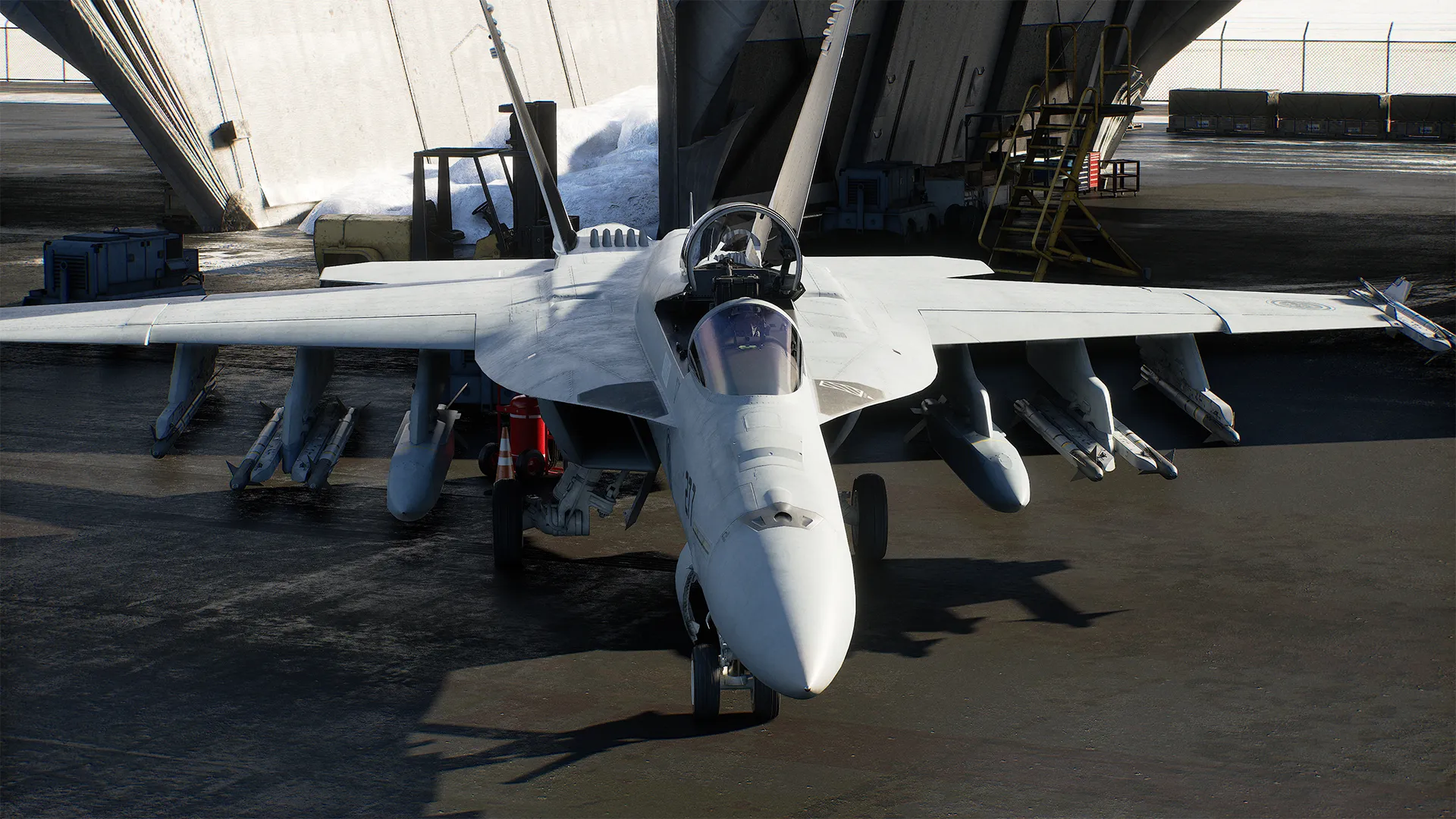
Beyond the technical hurdles, the visual fidelity of the game is a standout feature. Whether you are flying through clouds or watching the sun reflect off your wing, the sense of scale is amplified by the Ace Combat 8: Wings of Theve ultrawide perspective.
The game’s sound design—specifically the high-tempo soundtrack—complements the visual spectacle. For a deeper look at the game's mechanics and story, you can check out the official Ace Combat 8 Steam Store Page.
FAQ: Frequently Asked Questions
Q: Does Ace Combat 8: Wings of Theve support VR?
A: Currently, there is no official VR support included in the release. The focus remains on standard monitor setups, including support for ultrawide configurations.
Q: Will I get banned for modifying the Engine.ini file?
A: Modifying configuration files to enable features like Frame Generation is generally safe for single-player campaigns. However, always exercise caution when applying mods to online-enabled components.
Q: Why are my cutscenes showing black bars?
A: The game renders pre-recorded cinematics in a fixed 16:9 aspect ratio. This is a deliberate design choice to maintain the intended cinematic framing and is not a bug.
Q: Is Ace Combat 8: Wings of Theve worth the 140GB storage cost?
A: Given the visual fidelity and the sheer amount of high-quality assets, most players agree it is a worthwhile investment. Ensure you have an SSD with enough overhead to accommodate the game and future updates.