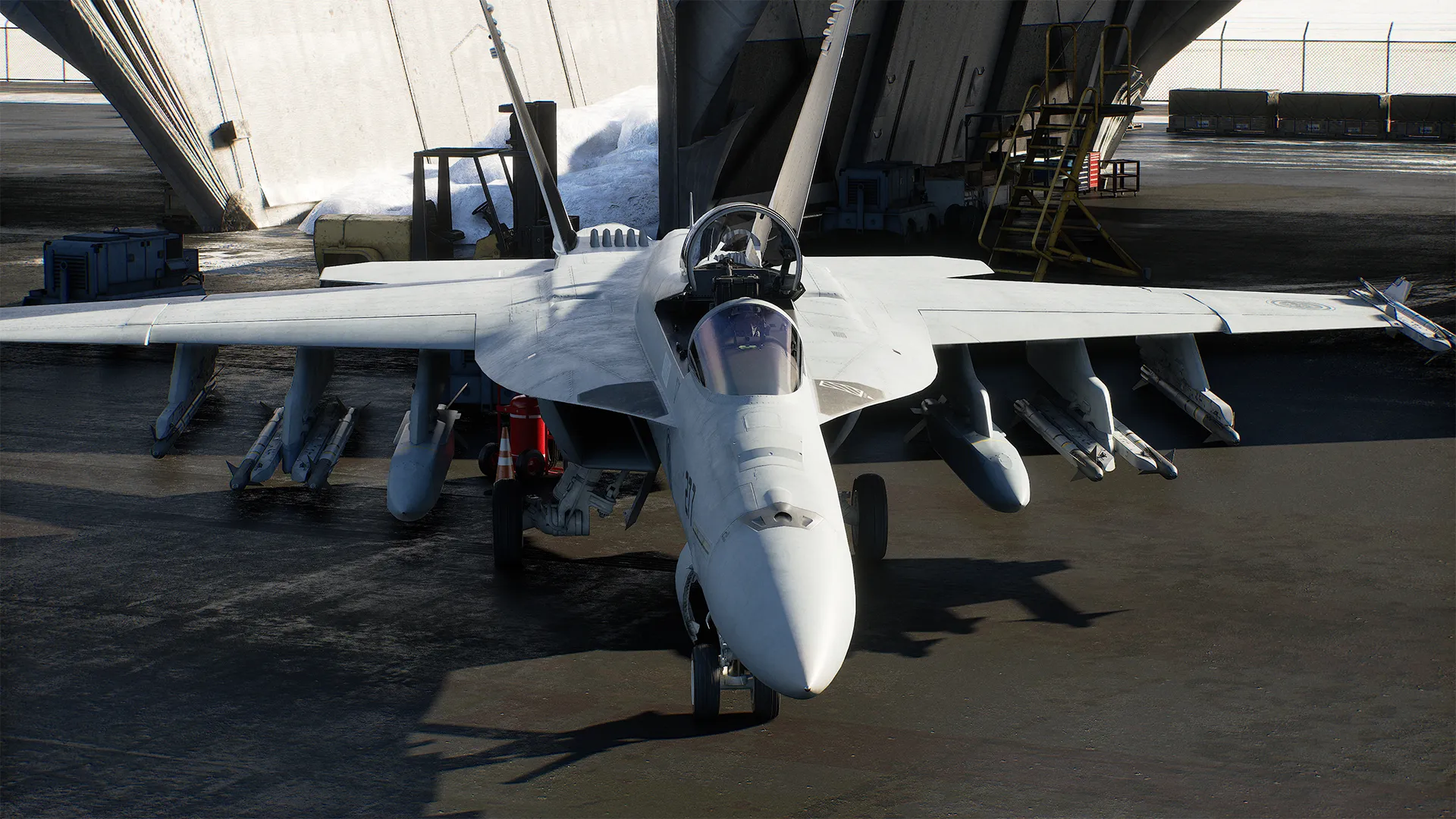
Boost your FPS in ACE COMBAT 8: WINGS OF THEVE with our expert DLSS settings guide. Discover the best graphics configurations for a smoother flight experience.
Published: ACE COMBAT 8: WINGS OF THEVE Wiki Editorial Team
Table of Contents
Achieving Maximum Performance in the Skies
The long-awaited release of ACE COMBAT 8: WINGS OF THEVE has finally arrived, bringing the legendary Strangereal world to life with unprecedented visual fidelity. However, pushing your hardware to handle the game's dynamic, multi-layered cloudscapes and intensive dogfights can be taxing. For PC players, mastering graphical settings is essential to maintaining a smooth frame rate during high-speed maneuvers.
If you are wondering how to optimize your setup, the integration of cutting-edge upscaling technologies like DLSS in ACE COMBAT 8: WINGS OF THEVE is your best solution. This guide will walk you through the optimal configurations to balance visual clarity with high-octane performance, ensuring your flight experience remains fluid even in the heat of an emergency sortie.
Understanding Graphical Demands
To maintain a consistent 60 FPS at 1080p or higher resolutions, understanding the relationship between the proprietary "Cloudly" weather system and your hardware is vital. The game’s engine is designed to simulate living skies, which often results in significant GPU load during dense weather patterns.
Recommended System Requirements
Component
Specification
OS
Windows 11 (64-bit)
Processor
Intel Core i7-12700K / AMD Ryzen 5 5600X
Memory
32 GB RAM
GPU
NVIDIA GeForce RTX 3070 / AMD Radeon RX 6800
Storage
125 GB SSD (Required)
Tip
SSD Requirement
Always install ACE COMBAT 8: WINGS OF THEVE on an NVMe SSD. The game's streaming technology for open-world map segments requires high read speeds to avoid texture pop-in or stuttering during high-speed flight.
Configuring DLSS for Optimal Flight
DLSS (Deep Learning Super Sampling) is the secret weapon for many pilots. By rendering the game at a lower resolution and using AI to upscale it, you can achieve a sharper, more responsive experience. In ACE COMBAT 8: WINGS OF THEVE, we suggest using the "Quality" or "Balanced" presets depending on your specific GPU.
How to Enable DLSS Settings
Launch the game and enter the Options menu.
Navigate to the Graphics tab.
Locate the Upscaling setting.
Select DLSS and choose your preferred preset.
Upscaling Preset Impact
Preset
Visual Quality
Performance Gain
Recommended Usage
Quality
Excellent
Moderate
1440p/4K gaming
Balanced
Great
High
1440p high refresh
Performance
Good
Maximum
4K heavy load
Community-Tested Optimization Strategies
Many players in the community have reported that while the base settings are highly optimized, specific tweaks to anti-aliasing and ray tracing can provide an extra performance buffer. Community feedback suggests that lowering the "Global Illumination" setting by one notch offers a 10-15% performance increase with almost no perceptible loss in visual detail.
Pro-Tips for Smoother Dogfights
Disable V-Sync in-game: If you have a G-Sync or FreeSync monitor, disable V-Sync inside the game settings to reduce input latency—critical for lock-on timing.
Limit Background Processes: The game uses extensive CPU resources for AI drone calculations; ensure your browser and other non-essential apps are closed during competitive online matches.
Ray Tracing Toggle: If you are hovering below 60 FPS, consider toggling hardware ray tracing to "Off." While it adds depth, the cinematic cloud rendering already provides a stunning atmosphere.
Mastering the Joker Flight Experience
Beyond technical performance, ACE COMBAT 8: WINGS OF THEVE features a deeply narrative-driven campaign. You play as "Rex," stepping into the shoes of the legendary "Wings of Theve." The game’s structure forces you to rely on your wingmen. Using the new quick-wingman commands (inspired by Ace Combat 5) is not just for show; it is an essential strategy for clearing mission objectives quickly.
Squad Command Utility
Attack: Focuses the squadron on your currently locked target.
Cover: Orders wingmen to guard your six and deploy flares.
Disperse: Useful for breaking formation when facing heavy surface-to-air missile barrages.
Official Resources and Further Reading
For those who want to stay up-to-date with future patches, seasonal content, or the latest community events, be sure to visit the Official Bandai Namco Game Site to check for driver updates or new DLSS profiles that might be added to the game launcher.
FAQ: Frequently Asked Questions
Does ACE COMBAT 8: WINGS OF THEVE require constant internet?
The game allows for single-player campaign play offline; however, you will need a connection to access the leaderboards and the cross-platform ACE COMBAT ONLINE mode, which features large 100-player lobbies.
Can I use DLSS on non-RTX cards?
No, DLSS is exclusive to NVIDIA RTX hardware. If you are using an AMD Radeon card, the game offers alternative upscaling solutions in the Graphics menu.
Why is ACE COMBAT 8: WINGS OF THEVE stuttering despite high FPS?
This is often caused by shader compilation or disk streaming. Ensure your game is on an SSD and allow the game to finish its initial shader cache compilation upon first launch.
Where can I find my pre-order bonuses?
Pre-order bonuses, such as the F-14A aircraft, are automatically unlocked in your hangar once you complete the prologue mission. Check your in-game "Aircraft Select" menu to see if they are active.